Tip 1 – View All Rules in Your Web Checker Results
When reviewing your results in the web checker, you may notice that only rules with errors are shown by default.
If you’d like to see all rules, including those that passed or were not checked, you can simply toggle the button shown in the screenshot below!
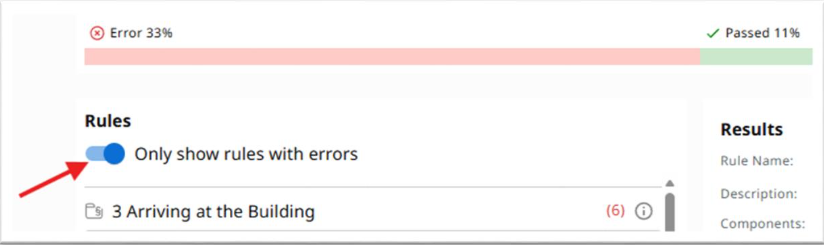
Quick Tip: Use the toggle to switch between viewing only failed rules or the full list of rule validations.
This helps you get a clearer picture of your model’s overall compliance and makes it easier to verify that everything has been checked as expected.
Tip 2 – Chapter 2 on the Web Checker
You may have noticed that Chapter 2 is currently missing from the web checker. Don’t worry, this is intentional! We’ve taken your feedback on board and are now working on enhancing and improving the rules for this chapter to ensure a better and more accurate checking experience.
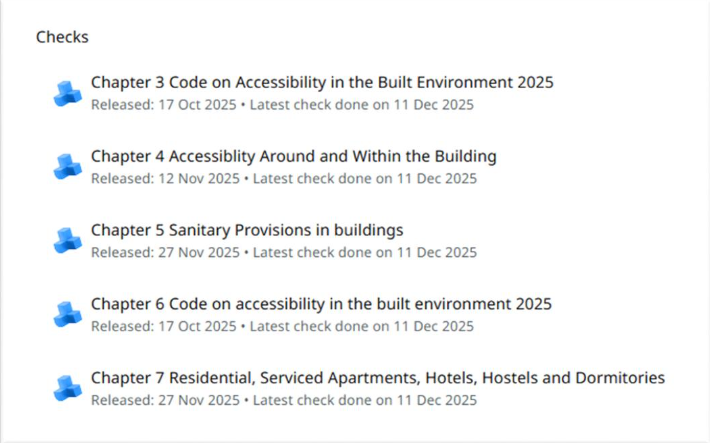
We’ll be releasing the updated Chapter 2 soon. Stay tuned we’ll notify you as soon as it’s available.
Thank you for your patience and continued support!
Tip 3 – Using Sample Models for Beta Testing
If you’re using our sample models for beta testing and are wondering which models align with which chapters of the accessibility code, we’ve got you covered!
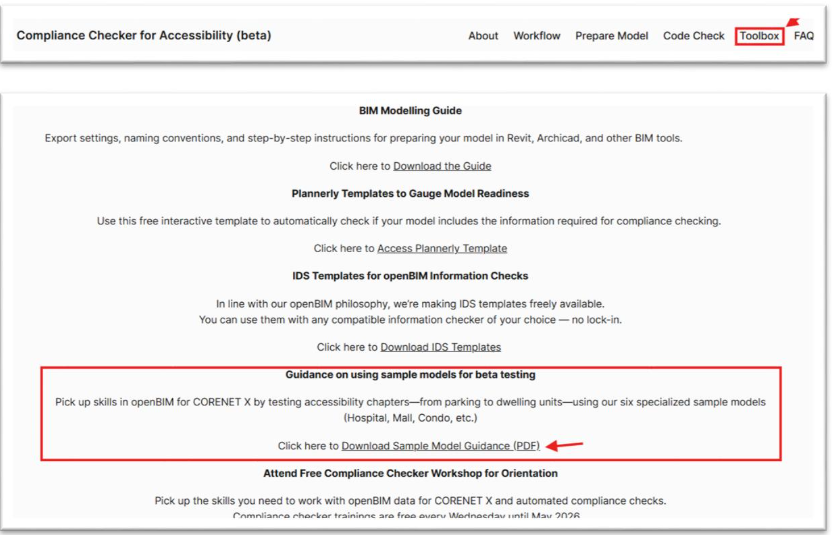
Check out the “Guidance on using Sample Models for Beta Testing” document on our modelchecker.aceplp.com website (refer to the screenshot below on where to find it!). It’ll help you quickly identify the right sample model for the chapter you’re testing.
Happy testing, and as always, feel free to reach out if you have any questions!